Search for a Carpool
 If you didn’t join us from the trip planning article, the first step is to search for your commute options using the trip planner tool. You can initiate a trip search from the site homepage or the trip planning widget on your user dashboard.
 Once you’ve searched, you’re faced with all of your commute mode options, one of which is carpools.
Available carpools will be listed to the right. You can view as either a rider or a driver by selecting which of the two you’d prefer at the top of the list. For each listing, you can see the details of the trip including preferences and days and times.
Filter your carpool options by changing the schedule, trip type, and networks on the left side. For example, you may want to only see carpool matches from your employer, select your employer network from the "Show Networks" drop-down.
Contact a carpool owner by clicking on the card for the carpool you’re interested in to expand the window and review it’s details, then click ‘Connect’. Compose your message to the carpool owner, click send, and your message will be emailed directly to the user. (You must be logged in to send carpool messages.)
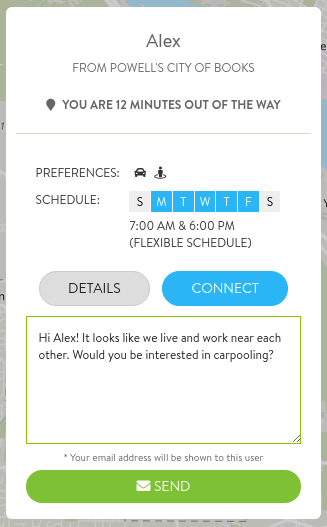
Your message to the carpool owner will include your name and your email address. If you would like to include additional contact options, you can add that to your message. Once you and the carpool owner connect, you can work out the details of the trip and be on your way.
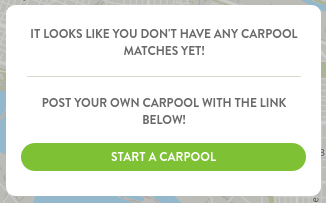
If you don't see any carpool matches, be sure to save your search as a favorite trip in order to share yourself as a potential carpool match for other users searching for partners. Click "Start a Carpool" in the search results area then follow these directions for saving a favorite trip.
Some commuter programs encourage or require users to register as carpool partners via RideAmigos. Doing so requires the carpool owner to invite you to their carpool, or for you to invite them to yours. This typically happens after initial contact has been made following the instructions above. Learn more about managing carpool memberships.
Find Transit Options
To discover the transit options available for a specific trip, start by searching for your options via the trip plan search box or clicking on the Transit Options tile on your My Commute widget on your user dashboard.
Once you're using the trip planner you can edit your origin and destination, trip date, and arrival/departure times as necessary to refine your transit options.
Your list of transit options will update based on your search criteria:
The transit result cards show the total time your journey will take, along with other important details like when you will depart and arrive, how many transit legs are in the trip, and the approximate fare (when available.)
Click on a result to see more detailed information:
This detail view provides more information about the specific stops you'll need to get on and off of each transit route, how to navigate between transit stops to make connections, and information about the service providers for each route. For more information about a transit provider, click the providers name to visit their website.
Your transit results will automatically incorporate any providers available in your site's database, including bus, subway, light rail, ferries, and regional or employer shuttles.