How do I get from Here to There?
RideAmigos provides a comprehensive suite of tools to help you plan and prepare for trips, particularly commute trips (trips you take on a regular schedule) and one-time trips.
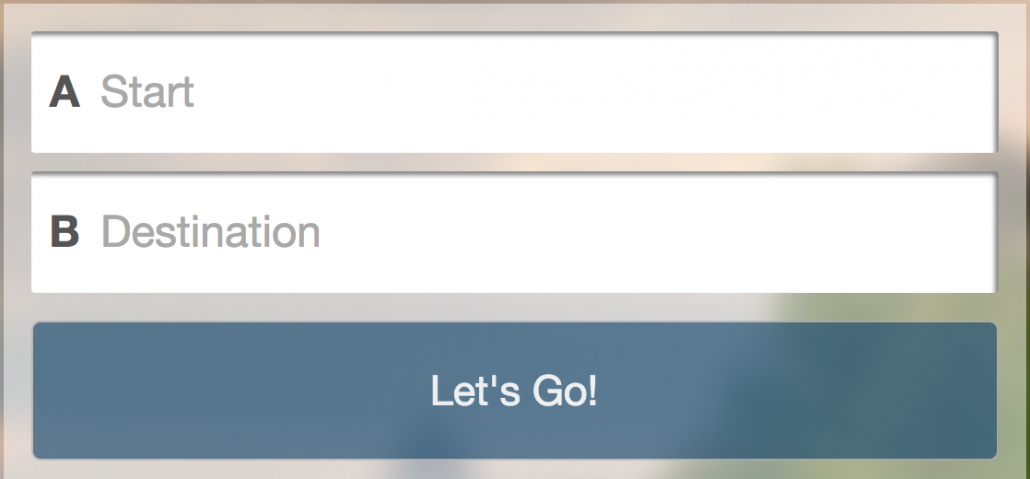
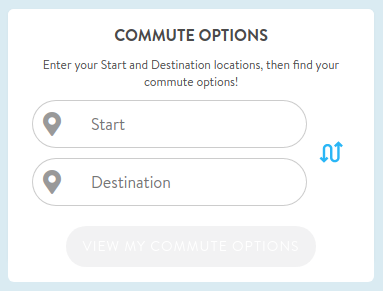
To explore all of your trip options and resources, start by entering your origin and destination locations into the trip planner. This can be done in one of two locations:
From the home page:
From your user dashboard:
Along the left side of the screen are different transportation mode options for getting from Point A to Point B.
These options depend upon your specific locations and may include additional modes to those shown here, such as employer shuttles where available. By clicking on a mode, you see all the results and options associated with that mode, as well as the various routes on the map to the right.
Save Your Commute, Share Your Commute
Click Save this Commute by the star icon at the top left of the page to add this to My Commutes as a favorite trip.
Saving your commute gives you quick access to your trip options via the My Commute widget on your user dashboard, lets you share your trip and invite other users to join your trip, and makes trip logging simple and quick.
You can also save your trip using the Manage my Carpool button. Either method will allow you to create a saved trip that can be shared with other users interested in carpooling (or bikepooling!).
For more information about carpooling, visit our articles on finding a carpool or sharing a carpool.
Find Transit Options
To discover the transit options available for a specific trip, start by searching for your options via the trip plan search box or clicking on the Transit Options tile on your My Commute widget on your user dashboard.
Once you're using the trip planner you can edit your origin and destination, trip date, and arrival/departure times as necessary to refine your transit options.
Your list of transit options will update based on your search criteria:
The transit result cards show the total time your journey will take, along with other important details like when you will depart and arrive, how many transit legs are in the trip, and the approximate fare (when available.)
Click on a result to see more detailed information:
This detail view provides more information about the specific stops you'll need to get on and off of each transit route, how to navigate between transit stops to make connections, and information about the service providers for each route. For more information about a transit provider, click the providers name to visit their website.
Your transit results will automatically incorporate any providers available in your site's database, including bus, subway, light rail, ferries, and regional or employer shuttles.
Find Bike Routes and Bike Shares
To find bike options for your trip, begin by starting a trip search via the trip search tool or from your My Commute widget.
Bike Routes
Your trip search results will include suggestions for bike routes to travel between your origin and destination. Generally two results are displayed - a more direct route, and a secondary route that may take longer but makes use of more bike-friendly resources like shared pathways and bike lanes.
Bike Share Locations
Some cities and employers offer bike-sharing systems as an additional option to consider when you're planning your trips. To discover available bike shares along your route, click the Bike Share Locations map layer. Icons will appear for locations where bikeshare docks or dockless bikes can be found:
If the location is a bike share dock, the number of bikes available and empty spaces available will appear.
You may want to search for new trip options from a bike share location - for example if you want to find transit routes that start or end near a bikeshare - just click on the link to re-plan your trip to or from the selected location.