Manage and Log Verified Carpools
Creating formal carpool memberships with other users and logging verified carpool trips is required for programs run by some organizations. Read on to learn how you can invite other users from your organization to be a member of your carpool so you can log the carpool trips you take with specific people.
Manage Your Carpool
To invite people to your carpool you’ll need to first save your commute as a carpool. Specifically, you'll need to save your commute, clicking the box that indicates you have interest in carpooling. If you don't complete this step, then you won't see a carpool saved under "Manage My Pools". Once you’ve saved your commute, head to the My Commutes widget on your user dashboard.
Click the "Manage my Pools" button at the bottom of the widget:
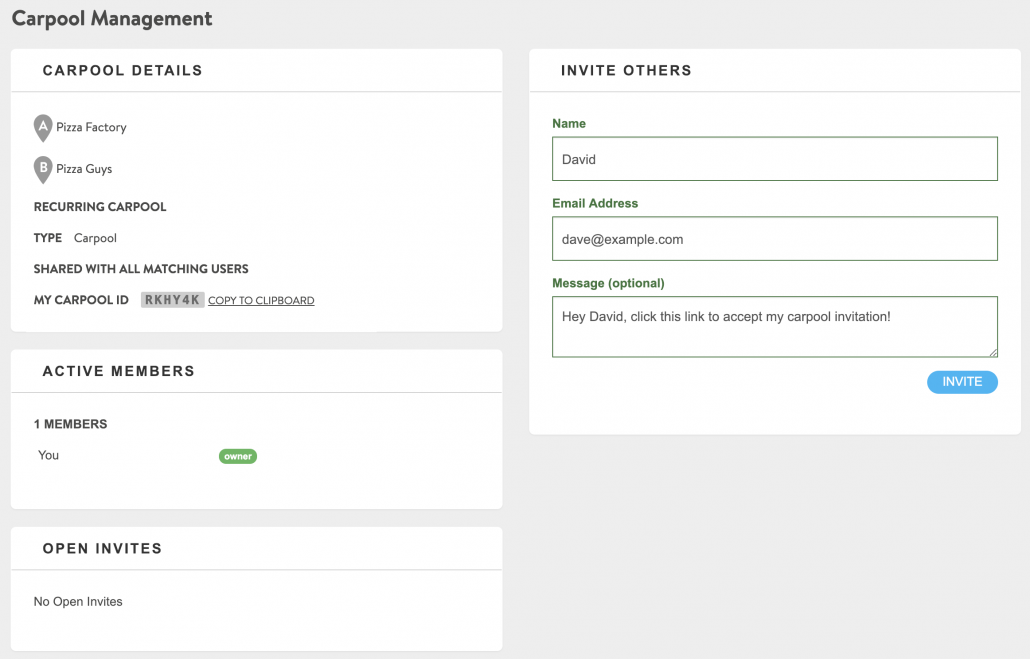
This opens the Carpool Management screen:
Inviting New Members
To invite someone to officially join your carpool, use the Invite Others form on the Carpool Management screen. Enter the invitee’s name and email address. You can also customize the invite message.
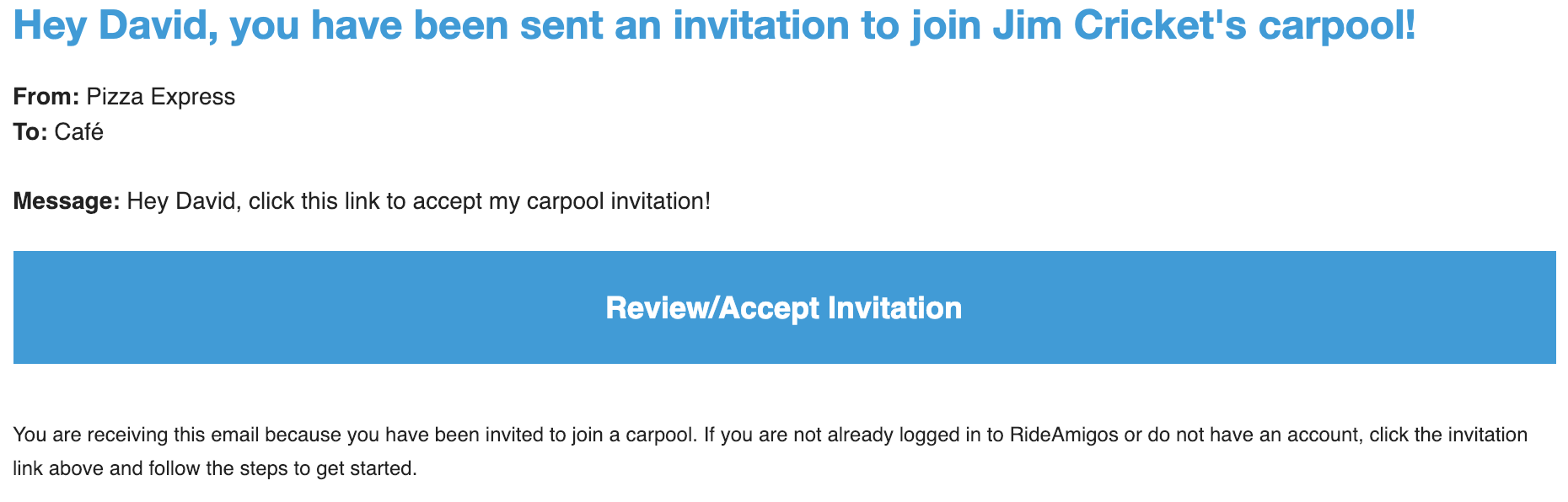
After you click Invite, the other user will receive an email message with a link to join the carpool:
Once the invite is sent, it will appear in the Open Invites area on your Carpool Management screen. To cancel the invitation, click the X beside the invite.
Responding to an Invitation
If someone sends you an invite to become a member of their carpool, click on the button in their email (seen above) and you’ll be taken to a page providing more details about the carpool you’re joining:
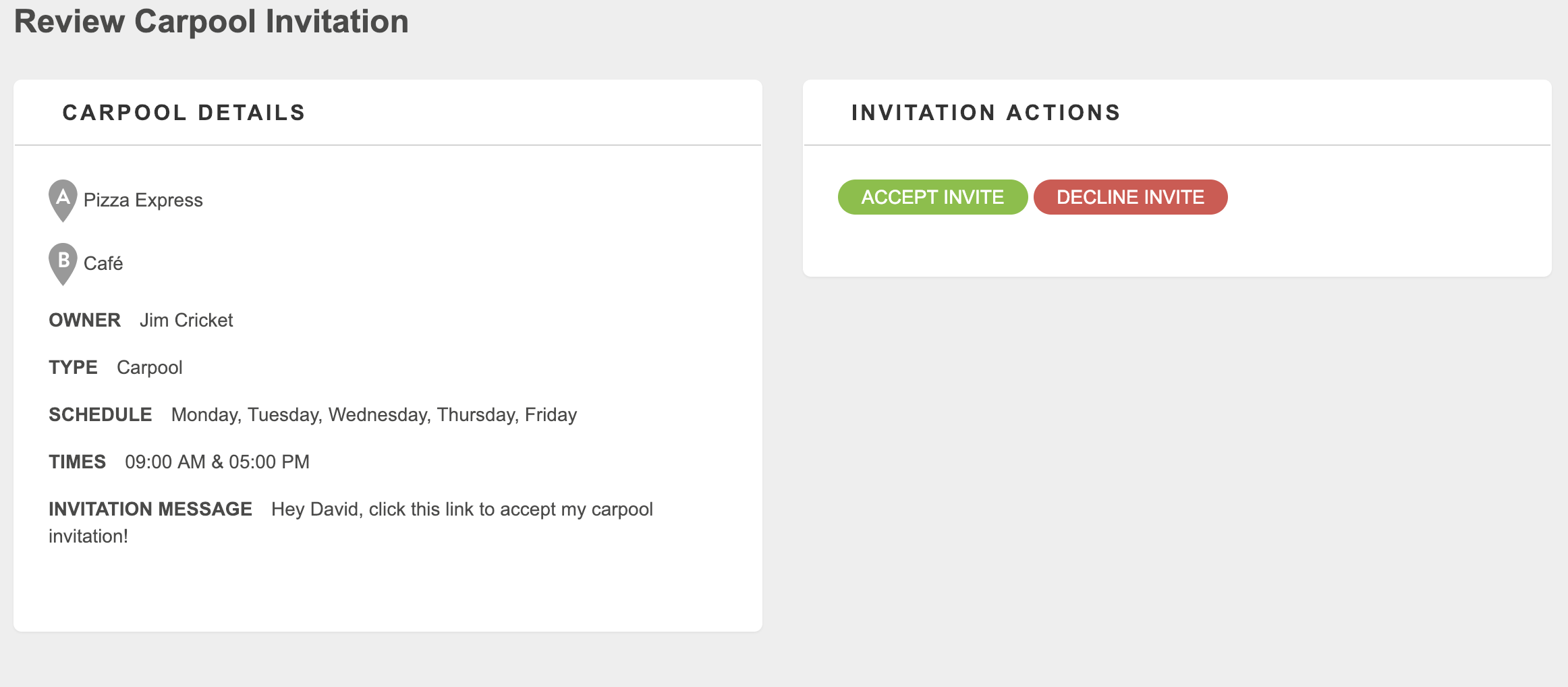
You can choose to accept or decline the invite. Should you choose to accept, you’ll receive a confirmation message.
After joining a carpool, you can review the shared commute’s details from the Manage my Pools drop-down menu on the bottom left of the My Commutes widget on your dashboard:
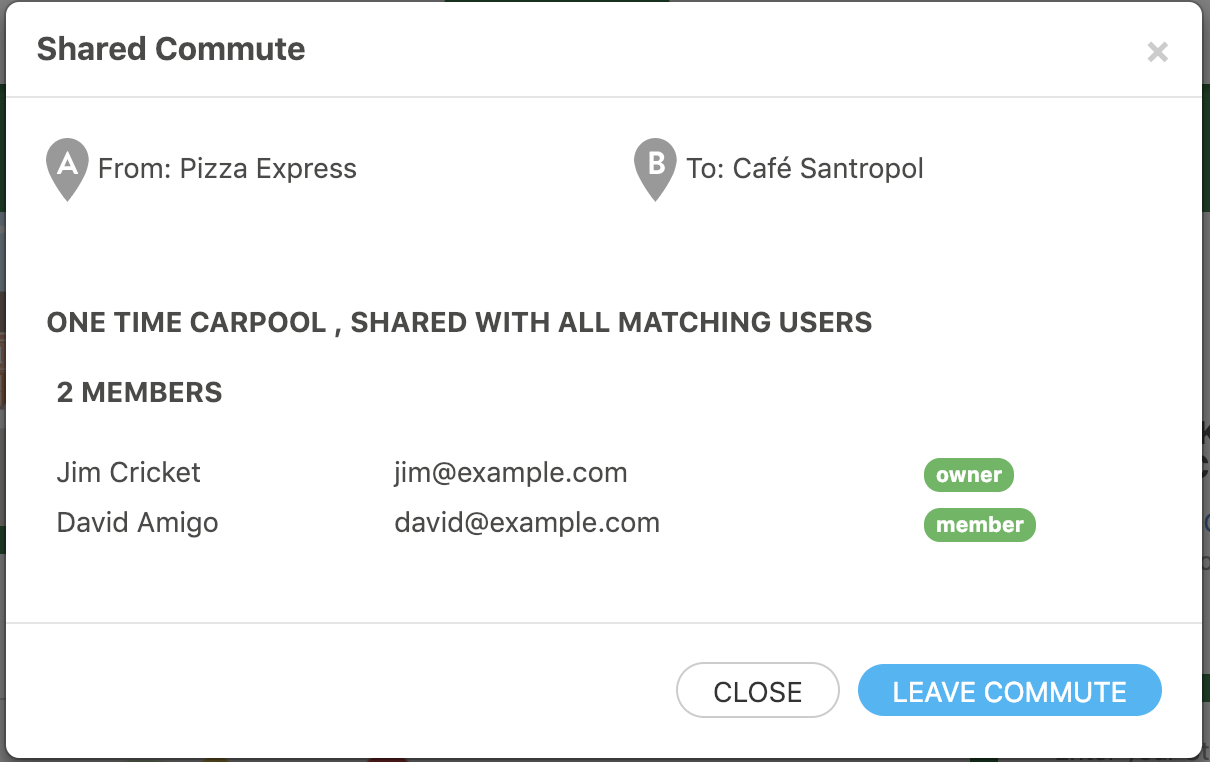
If you ever need to remove yourself from this carpool, just click Leave Commute.
Managing Members
If you are a carpool owner and someone has accepted your invitation, you will receive an email confirmation and your My Carpool card on the My Commute widget will update to indicate the number of members in your carpool.
You can view and edit your members by clicking Manage.
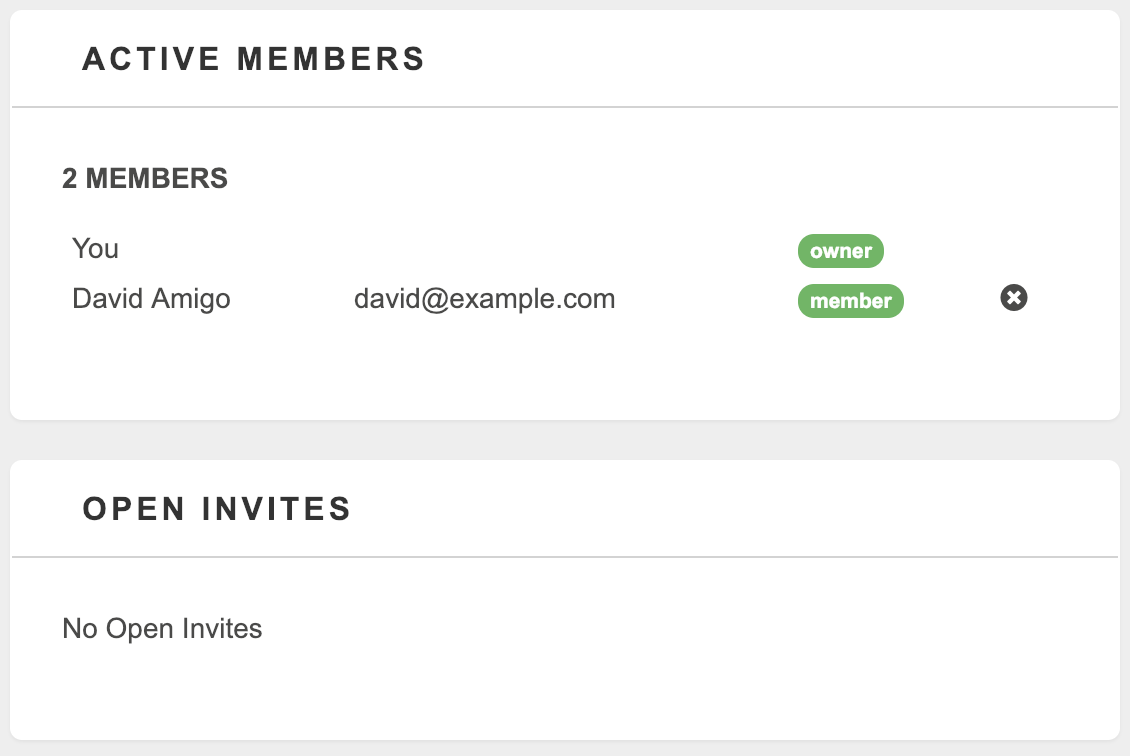
You can remove members from your carpool by clicking the X next to their name.
Logging Verified Carpool Trips
Once your carpool has more than one member all of the members of the carpool will see a new trip logging mode that corresponds to the name automatically generated for your carpool (e.g. Carpool-XYZ123) or the name set up when managing the carpool.
These trips will count as trips with the mode of "carpool" for participating in reward and challenge programs.
When multiple members of the carpool log trips for the same days and times the system will count these as "verified" carpools and they will appear with a verified icon in your trip history. Some organizations use this method of carpool verification to determine program eligibility.
If you and a carpool partner are attempting to log verified trips but they are not appearing as verified, ensure that you are both members of a carpool, that you are both using the same carpool-specific logging mode, and that you are logging trips for the same dates and same approximate travel times.
Carpool ID
Some organizations make use of your carpool’s Carpool ID for things like carpool parking permits. Your Carpool ID can be found in the Carpool Details section of the Carpool Management screen. If your organization uses RideAmigos to issue printable carpool permits the link to do so will appear in the same area.
Verified Carpool Management
For many employers and organizations, validation of carpools and who is entered in a carpool is a necessity. In addition, administrators may want to know how many actual carpools have been formed. Check out the details below for more about these features.
Carpool ID – Tracking and Verification
Are you looking to match up with other users in a carpool and have some of their information at a glance? Looking to see who in your network formed carpools for permitting or reporting needs? No problem! With our rideshare and carpool verification features, all of this is able to be tracked quickly and easily.
For carpool owners:
- Start by creating your carpool.
- Next, you’ll need to share your Carpool ID / Commute ID with other members of your carpool.
- From your user dashboard, click on the “Manage” button on the My Carpool card:

- From the carpool management window, copy your Commute ID and share it with other members of your carpool via email or your preferred messaging tool.

- Creating a carpool for employer or network benefits? Make sure your trip is shared specifically with those networks so that your network manager can view/report on your carpool.
For carpool passengers:
- Get the Carpool ID / Commute ID from your driver (see above.)
- Click on “My Memberships” then “Join A Commute” from the bottom-left corner of the My Commute widget on your user dashboard.

- Enter the Commute ID you received from your driver.
- To view the detailed information about the carpool you have joined, click the My Memberships button again, then click on the carpool (identified by origin and destination.)
- If you wish to leave the carpool, click “Leave Commute.”